TABLE OF CONTENTS
- Overview
- Getting Access to the Support Portal
- Support Hours
- How to Submit a Ticket
- How Fast We Respond
- Making a Rate or Configuration Change
- What Happens While Your Ticket Is Open
- When Something Goes Wrong (Incidents)
- Who Does What
- Frequently Asked Questions
- How do I get access to the support portal?
- What if I can't access the support portal?
- Can I see tickets submitted by other people at my credit union?
- How is my ticket's priority determined?
- Can Clutch make configuration or rate changes outside business hours?
- What happens if I don't respond to a resolved ticket?
- Getting Help
Overview
Clutch provides structured, ticket-based support to credit union partners through a dedicated support portal. Support covers technical issues and questions, configuration changes, rate updates, and general product inquiries. This article covers how to get access, when support is available, how to submit a ticket or feature request, how ticket priority and response times work, how rate and configuration changes are handled, and what to expect while a ticket is open.
Getting Access to the Support Portal
Clutch's support portal, powered by Freshdesk, is available at support.withclutch.com. The portal is the recommended and preferred way to open and track support requests.
Signing Up
- Go to the Support Portal login page.
- Select Sign Up.
- Follow the prompts to register using your work email address.
Important: You must sign up with a work email address associated with the credit union you work for. Accounts registered with an email domain outside Clutch's customer or prospect base are removed.
Once you're registered, you can:
- Open new tickets on behalf of your credit union
- View and track tickets you've submitted
- Reply to and update tickets you have visibility into
- Receive automated status notifications by email
By default, you can only see tickets you personally submitted. If your credit union needs visibility into all tickets submitted by your organization, contact Clutch Support to have this turned on.
If the Portal Isn't Available
If the portal is unavailable or you can't use it for any reason, you can submit a ticket by emailing support@withclutch.com. Email submissions follow the same SLA commitments as portal submissions, with one difference: email tickets default to Low priority, though an automation rule may raise the priority depending on the subject of the ticket.
Support Hours
Support is available Monday through Friday, including US holidays. Staffing may be lighter than a typical business day during certain holidays, but Support remains available and SLA commitments continue to apply.
All SLA timers run during the support hours below, Monday through Friday, unless a separate schedule is specified in your agreement.
| When | Eastern Time (UTC-4) | Pacific Time (UTC-7) |
|---|---|---|
| Weekdays | 9:00 AM – 9:00 PM | 6:00 AM – 6:00 PM |
| Weekends | None by default* | None by default* |
*Available for pre-scheduled change requests — see below.
Tickets submitted outside support hours are received and queued; SLA timers begin at the start of the next business day.
Off-Hours Deployments for Pre-Scheduled Changes
While standard support hours are Monday through Friday, Clutch is equipped to execute pre-scheduled configuration changes and rate update deployments on weekends and outside regular business hours when Credit Union needs require it. A common example is a campaign or rate change that must go live on the first day of a month that falls on a Saturday or Sunday. Clutch will deploy on that day as agreed. To arrange a weekend deployment, partners open a ticket in advance and coordinate a date and time with the assigned engineer.
As this is a manual process that requires a human in the loop, requests to deploy outside of business hours, especially overnight, must have a valid business reason to be accepted, such as the example above. Weekend deployments are available by prior arrangement only and do not carry standard weekday SLA response targets.
How to Submit a Ticket
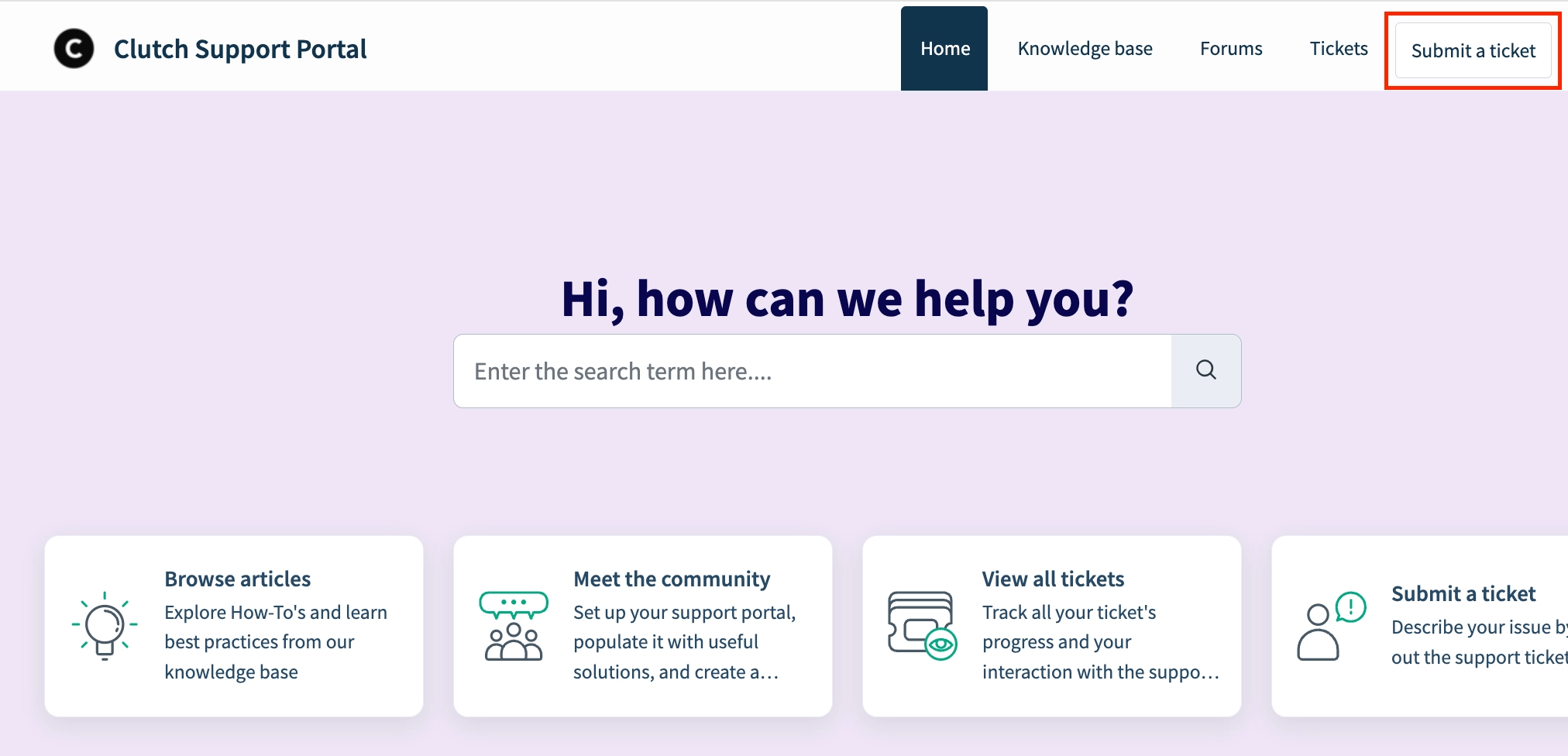
After signing in to the support portal, select Submit a Ticket in the top navigation to open the form.
Choosing a Ticket Type
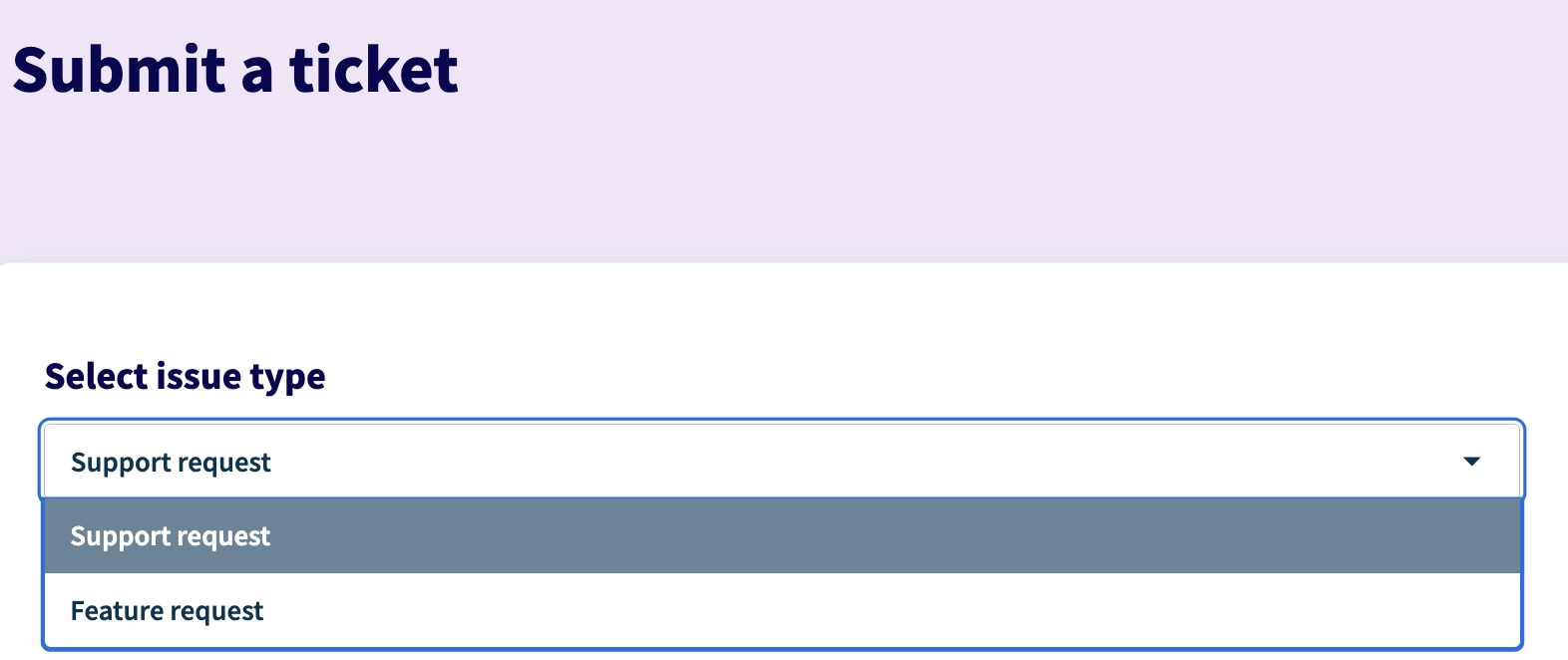
Choose between Support Request and Feature Request. Use a support request for technical issues or questions. Use a feature request when you're asking for new product functionality — talk to your Customer Success Manager before submitting one.
Filling Out the Form
Fill in the form fields — fields marked with an asterisk are required — then select Submit.
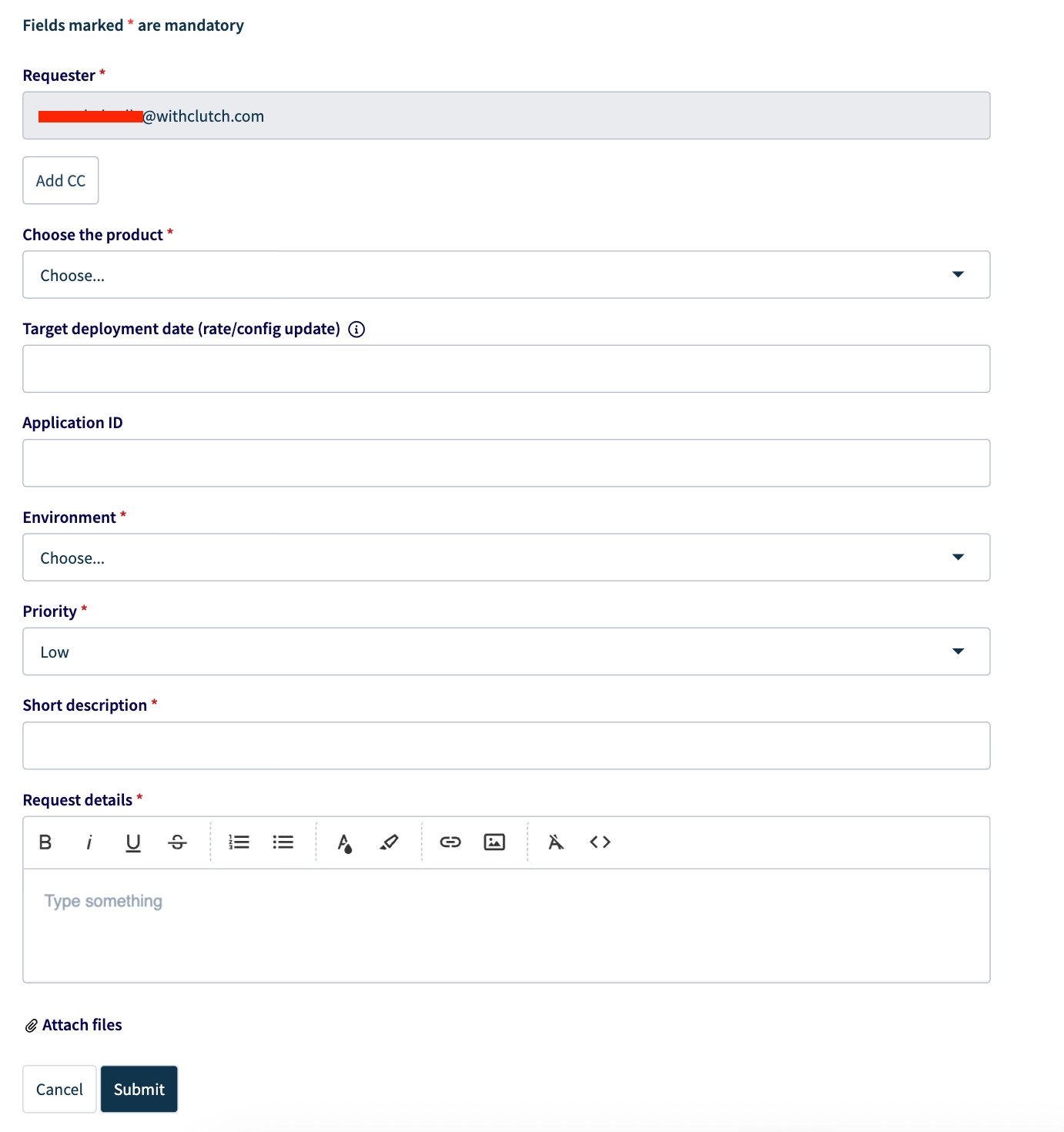
| Field | Required | Description |
|---|---|---|
| Issue type | Yes | Select Support Request for standard support interactions, or Feature Request if you want to ask for functionality that doesn't currently exist in the platform |
| Requester | Yes | Pre-filled with your email address automatically |
| Add CC | No | Add anyone else who should receive email updates on this ticket |
| Choose the product | Yes | The Clutch product the request relates to (e.g., Account Opening, Lending) |
| Choose the affected Portal | Yes | Whether the issue affects credit union staff, credit union members, or both |
| Target deployment date | No | For rate and configuration change requests only — the date you need the change live in production |
| Application ID | No | If the request relates to a specific loan or account opening application, include the ID here for faster triage (found in the Staff Portal on the application) |
| Environment | Yes | Select Production or Sandbox depending on where the issue occurs |
| Priority | Yes | Your assessment of urgency — Urgent, High, Medium, or Low (see "How Fast We Respond" below) |
| Short description | Yes | A concise, one-line summary of the request |
| Request details | Yes | Full context: what happened, steps to reproduce if applicable, and the business impact |
| Attach files | No | Attach anything needed to complete the request, such as a rate sheet |
Clutch Support will always try to honor the priority you choose, but may adjust it up or down based on the definitions below. Any adjustment is noted directly on your ticket.
How Feature Requests Are Handled
- Clutch Support confirms the request is genuinely a feature request and not a support issue.
- Once confirmed, it's handed off to your Customer Success Manager.
- Your Customer Success Manager runs a short discovery conversation to review and document the request.
- Your Customer Success Manager stays your point of contact as the request moves through Clutch's review and prioritization process.
Important: Submitting a feature request doesn't guarantee development.
Once a ticket is submitted, it moves through a predictable set of stages: creation, acknowledgment, engineer assignment, resolution, and closure. See "What Happens While Your Ticket Is Open" below for the full notification schedule.
How Fast We Respond
Each ticket is assigned a priority level that determines Clutch's response and resolution commitments. The table below reflects targets measured in business hours.
These commitments apply to support requests only. A confirmed feature request is handed off to your Customer Success Manager and isn't tracked against SLA targets.
| Priority | Target First Response | Target Resolution |
|---|---|---|
| Urgent | 1 business hour | 8 business hours |
| High | 4 business hours | 16 business hours |
| Medium | 8 business hours | 24 business hours |
| Low | 16 business hours | 32 business hours |
First Response is the time from ticket creation to Clutch's first reply — an acknowledgment with a proposed timeline, a clarifying question, or a thorough initial update.
Resolution is the cumulative business hours of support time from ticket creation to confirmed closure.
SLA timers pause whenever a ticket is waiting on you — for example, if we need more information, or you need to validate a fix. The timer resumes once you respond. Some partners have custom SLA targets defined in a separate agreement; Clutch's platform applies the correct schedule automatically.
How Priority Is Determined
If you don't specify a priority when opening a ticket, Clutch Support sets one based on the operational impact of the issue:
- Urgent — a production application is down, or a major malfunction is affecting a large number of staff with direct operational or financial consequences. Examples: the portal isn't loading, or multiple loan or deposit applications are failing to be created or booked to your systems.
- High — a rate update request, or serious degradation of application performance or functionality. Examples: rate updates, application funding and booking re-triggering, or configuration discrepancies that add operational overhead.
- Medium — a backend change or issue with moderate business impact where a workaround usually exists. Examples: configuration requests, or issues affecting a specific subset of applications that don't affect booking completeness.
- Low — an issue or question with limited business impact. Examples: feature enablement or configuration requests, edge cases, or general questions about what the platform can do.
Making a Rate or Configuration Change
Requests for rate or configuration changes follow a structured process designed to prevent unintended changes in production.
- Open a ticket with the requested change and any supporting details.
- Clutch deploys the change to a sandbox environment.
- Clutch requests your written sign-off confirming the sandbox reflects the intended result.
- Once sign-off is received, Clutch schedules the production deployment for an agreed date and time.
- Clutch deploys to production and confirms completion on the ticket.
Important: Clutch will not deploy any change to production without your explicit written sandbox sign-off.
Expect at least one round of sandbox review before production deployment — some back-and-forth is normal as any discrepancies found during validation are addressed.
Submit rate and configuration change requests at least two business days before the desired production date. This gives enough time for sandbox deployment, review, and scheduling. Clutch Support will still process requests submitted with less notice, but shorter notice can lead to production delays.
What Happens While Your Ticket Is Open
Clutch's support portal sends automated email notifications at key points in your ticket's lifecycle, so your team stays informed without needing to follow up manually.
| Event | Notification |
|---|---|
| Ticket created | Acknowledgment with your ticket ID and expected next steps |
| Engineer assigned to your ticket | Notification with the assigned engineer's name |
| Ticket pending your response for 2 business days | Reminder requesting the outstanding information |
| Ticket pending your response for 4 business days | Second reminder |
| Ticket pending for 7 business days without a response | Notice that the ticket will be automatically resolved |
| Engineer marks the ticket Resolved | Resolution notification with a 7-day reopen window |
| Ticket closed after 7 days in Resolved status | Closure notice |
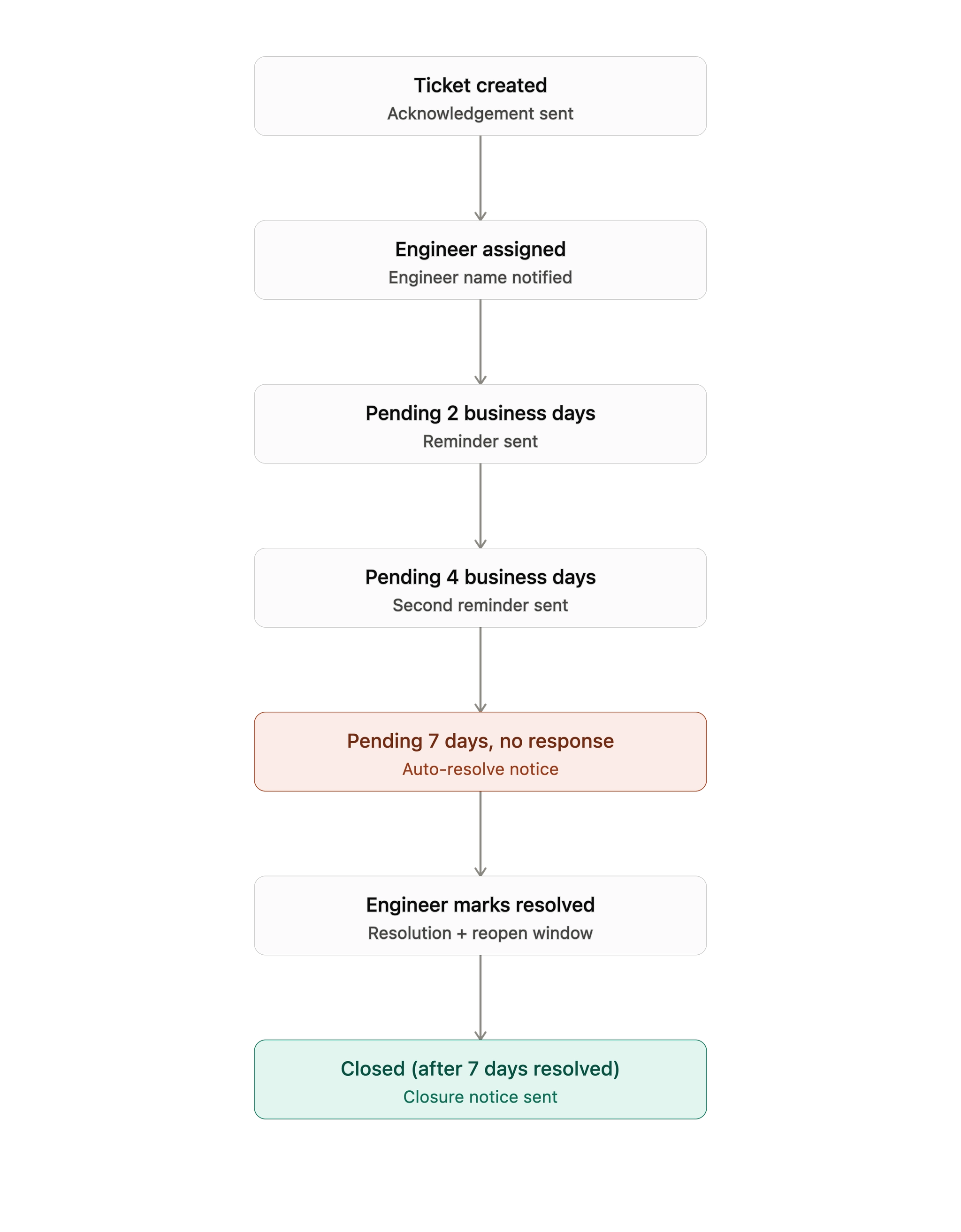
Clutch will not close a ticket without your sign-off. Once a proposed solution or change is delivered, or if more information is needed, the ticket moves to Pending status and waits for your written confirmation before next steps are taken.
Important: If you don't respond within 7 business days of a proposed resolution, the ticket is automatically closed. You'll get reminders at 2 and 4 days of inactivity before that happens.
Reopening a Ticket
You can reopen a resolved ticket within 7 calendar days of its resolution date. After that window closes, the ticket is permanently closed — open a new ticket instead, and reference the original ticket number for context.
When Something Goes Wrong (Incidents)
In the event of a service-impacting incident, Clutch follows a structured communication process to keep you informed.
Severity Levels
- Critical — a complete outage or major failure affecting most or all users. This gets an immediate, full response.
- High — significant degradation affecting a large subset of users, but not a full outage.
- Moderate — a minor or localized issue with limited impact on day-to-day operations.
| Severity | Initial Notification | Update Cadence |
|---|---|---|
| Critical | Within 15 minutes | Every 30 minutes until stable, then hourly |
| High | Within 30 minutes | Hourly until mitigated |
| Moderate | Within 60 minutes | Every 2–4 hours, or whenever there's a material update |
Critical and high-severity incidents are communicated through the Status Page and by email to mailing list subscribers. Moderate-severity incidents are communicated by email, through an outbound support ticket. Data incidents are classified as Critical or High severity and follow the same communication channels as those tiers. A final update is shared once any incident is resolved.
Subscribing to the Status Page
Real-time incident updates are published at status.withclutch.com. Clutch doesn't push updates to all partners by default — updates go only to subscribers. To receive them, visit the Status Page and select Subscribe in the upper-right corner. For more detail on how to read and use the Status Page, see Understanding the Clutch System Status Page.
Who Does What
Access and User Management
- Clutch — sets up your portal access automatically when you sign up, and configures visibility scope (your tickets only vs. your whole organization's) when you ask for it.
- You — let Clutch Support know when someone at your credit union no longer needs portal access, so we can remove it.
Ticket Submission and Handling
- Clutch — acknowledges tickets per SLA, assigns and communicates the engineer, keeps the ticket updated, and explains any priority adjustment.
- You — submit tickets with enough detail (impact, steps to reproduce, environment), select the priority that reflects the business impact, and respond promptly to requests for information or validation to avoid SLA pauses or auto-closure.
Rate and Configuration Changes
- Clutch — deploys to sandbox first, requires your written sign-off before production, and executes the production deployment on the agreed date and time.
- You — submit requests at least two business days ahead of the desired production date, review the sandbox promptly, and give explicit written sign-off before production proceeds.
Feature Requests
- Clutch — confirms whether it's genuinely a feature request, then hands it off to your Customer Success Manager.
- You — join the discovery conversation with your Customer Success Manager, understanding that submission doesn't guarantee development, and that standard SLAs no longer apply once a request is confirmed as a feature request.
Incidents
- Clutch — classifies severity, notifies you per the commitments above, and keeps the Status Page updated.
- You — subscribe to the Status Page and report suspected incidents through a ticket if you don't see them there already.
Frequently Asked Questions
How do I get access to the support portal?
- Go to the Support Portal login page at support.withclutch.com and select Sign Up. Follow the prompts to register with your work email address — no invitation from Clutch is required.
What if I can't access the support portal?
- Email support@withclutch.com. Email tickets follow the same SLA commitments as portal tickets, though they default to Low priority unless an automation rule raises it based on the subject.
Can I see tickets submitted by other people at my credit union?
- By default, you can only see tickets you personally submitted. Contact Clutch Support if your credit union needs visibility into all tickets submitted by your organization.
How is my ticket's priority determined?
- You can select a priority when you submit a ticket, and Clutch Support will always try to honor it. If you don't select one, or if Clutch adjusts it, the decision is based on the operational impact of the issue. Any adjustment is noted directly on your ticket.
Can Clutch make configuration or rate changes outside business hours?
- Yes, for pre-scheduled changes. Open a ticket in advance and coordinate a date and time with your assigned engineer. Weekend and after-hours deployments are available by prior arrangement only.
What happens if I don't respond to a resolved ticket?
- If you don't respond within 7 business days of a proposed resolution, the ticket is automatically closed. You can still reopen it within 7 calendar days of its resolution date; after that, you'll need to open a new ticket.
Getting Help
For anything specific to your credit union's account or setup, start with your Customer Success Manager. For everything else, Clutch Support is here to help:
- Submit a ticket in the Clutch Support Portal at support.withclutch.com (the Submit a Ticket link in the top navigation).
- Email support@withclutch.com.
Was this article helpful?
That’s Great!
Thank you for your feedback
Sorry! We couldn't be helpful
Thank you for your feedback
Feedback sent
We appreciate your effort and will try to fix the article