
TABLE OF CONTENTS
- Overview
- What Clutch needs from you
- Tag Management Solution Overview
- Google Tag Manager implementation
- Testing, validation, and troubleshooting
- Frequently Asked Questions
- What exactly does Clutch need from us to turn tag management on
- Do we need a separate GTM container for Lending and Digital Account Opening
- We only have a GA4 measurement ID and no GTM container - what do we do
- Who do we contact if something is not working
- What if I don't know how to configure tag management - can Clutch provide guidance
- Can I add tag management or analytics tags/pixels directly to the Clutch application
- Is it possible to correlate submitted Clutch applications with the referring lead source
- Can Clutch pass campaign tracking URL parameters to our core/LOS provider so we can track the full application to a funded loan journey
- Why is there a discrepancy in the number of apps reported in my analytics vs. the Clutch pipeline report
- Still need help
Overview
Google Tag Manager (GTM) enables your organization to track key performance indicators and conversion funnel activity without relying heavily on developer resources. By centralizing tag deployment and event tracking, GTM allows your marketing and analytics teams to measure user interactions at every stage of the member journey — from initial engagement to final conversion.
A comprehensive tag management setup can help answer questions like:
- How many applications are successfully submitted?
- What is the average loan value?
- What are the least/most popular loan products applied for?
- What is the average loan value by loan product type?
- How long does it take for an applicant to submit an application?
- All of the above segmented by user profile data (demographics, psychographics, firmographics, ethnographics, technographics, marketing campaigns, and click-stream data)
- What percentage of applicants who start the application process complete it?
- How many applicants successfully complete the application vs. those who don't continue (fallout)?
- Which steps/sections applicants are dropping off at — and what the contributing root causes are
What Clutch needs from you
To turn on tag management, Clutch needs one thing: your GTM container ID, in the format GTM-XXXXXXX. You can find it in the top-right corner of your Google Tag Manager workspace, beside the container name.
Send it to Clutch by opening a ticket at support.withclutch.com. Clutch enables the container in your sandbox environment first so you can validate your configuration, then in production once you have signed off. Everything else is configured by your team inside your own GTM account.
What Clutch does not need
Clutch does not need your GA4 measurement ID (G-XXXXXXXX) and never receives it. You enter that value yourself when you build your GA4 tag inside your own GTM account - see step 4 of GA4 tag configuration: GTM.
One container covers both Lending and Digital Account Opening
Clutch attaches your GTM container to your partner alias rather than to a specific URL, so a single container covers both Lending and Digital Account Opening. You do not need to request a separate container for each product, and you do not need to tell Clutch which products you plan to track. If GTM is already enabled for Lending, Digital Account Opening is already covered.
Inside your own GTM account you will still build separate tags, triggers, and variables for each line of business, because the data layer events differ - see Triggers configuration: GTM.
Check this before you submit your request: confirm you have a GTM container, not only a GA4 property. A GA4 measurement ID (
G-XXXXXXXX) on its own is not enough, and Clutch cannot enable tag management without a container ID (GTM-XXXXXXX). If you do not have a container, create one for free at tagmanager.google.com before opening your request.
Tag Management Solution Overview
Clutch currently supports tag management capabilities for Google Tag Manager. If you need to deploy tag management for a separate provider, contact Clutch Support.
Clutch enables tag management by loading your GTM container alongside Clutch's own GTM container, allowing your tags, triggers, and variables to fire within the Clutch application.
What tracking is supported by Clutch
The following outlines what is in-scope and out-of-scope:
| Description | Product | Supported | Not Supported |
|---|---|---|---|
Application Activity
| Lending | ✅ | |
Application Activity
| Digital Account Opening | ✅ | |
| Application Activity: emails, docs tab, doc uploads | All | ❌ | |
| Applications created by loan officers or member services representatives | All | ❌ | |
| Adding tag manager scripts, analytics scripts, or third-party tags directly to Clutch application pages/screens | All | ❌ | |
| Collection of PII* | All | ❌ | |
| Inclusion of any third-party software** that will alter the user experience or introduce performance issues on the Clutch platform. This includes but is not limited to: Chat, Surveys, Polls, Screen Recordings, Screen Heat Maps | All | ❌ | |
| Clutch will not perform, co-pilot, review, approve, or troubleshoot any configurations within a customer's tag management or analytics platform | All | ❌ | |
| Clutch cannot add, remove, or modify events or other data pushed into the data layer of the application | All | ❌ |
*Clutch cannot collect, report, or share any PII within the application or perform any data collection that violates the terms and conditions of Clutch.
**Due to security/compliance regulations and potential technical performance issues caused by loading third-party scripts on the Clutch platform, Clutch does not allow direct copy/pasting of GTM, Analytics, or advertiser code snippets within application pages/screens. All third-party tags must be supported through your tag management platform.
Key deliverables summary
The following outlines the process for tag manager activation, configuration, and troubleshooting with Clutch.
| Step | Enablement steps | Description |
|---|---|---|
| 1 | Signed SOW | SOW must be signed and an opportunity must be closed before activation and enablement begins |
| 2 | Customer submits their GTM container ID to Clutch Support | Customer opens a ticket at support.withclutch.com and provides their GTM container ID (GTM-XXXXXXX). The GA4 measurement ID is not required and is not shared with Clutch. |
| 3 | Clutch activates Google Tag Manager | Once the request is received, Clutch enables the customer's GTM container in their Clutch sandbox environment |
| 4 | Clutch notifies the customer when Google Tag Manager is activated | After the container is enabled in the Clutch sandbox environment, the customer is notified and can begin configuring tags, triggers, and variables in their own GTM account |
| 5 | Customer completes Google Tag Manager and analytics configuration | The customer configures their tag manager and analytics software by following the configuration guidance |
| 6 | Validation | If the customer experiences issues, Clutch Support will provide testing and defect remediation support |
| 7 | Release | Clutch enables the customer's GTM container in the Clutch production environment |
How does tag management work in Clutch
Clutch pushes events and limited application data variables into the data layer. Your tag management provider can trigger tracking tags based on these events and variables, and subsequently use them for analytics and marketing optimization.
Google Tag Manager implementation
Data layer variables overview: GTM
The data layer temporarily holds data in a structured format that GTM understands, making it easy to pass data from your web page or mobile app to tags, triggers, and other variables in GTM.
A variable is a named placeholder for a value that changes — such as a product name, a price, or a date. In addition to GTM's built-in variables, Clutch provides a predetermined set of user-defined data layer variables that you can configure within your GTM account.
Data layer variable configuration: GTM
| Name | Product | Type | Description |
|---|---|---|---|
| wc_customerId | All | Data Layer Variable | Unique identifier for the applicant, assigned per customer, not per application. The same person keeps the same value across all of their applications with your credit union. See the note below this table for when the value is set and when it can change. |
| utm_medium | All | Data Layer Variable | Identifies the marketing channel through which a user arrived at your website. It tells you the type of traffic source (i.e., medium) that delivered the applicant. |
| utm_source | All | Data Layer Variable | Defines the specific source that referred a visitor to your site. It works in tandem with other UTM parameters (like utm_medium, utm_campaign, etc.) to give full context about your traffic. |
| utm_campaign | All | Data Layer Variable | UTM parameter used in URLs to track the name of a marketing campaign. It helps you identify and analyze traffic from a specific initiative, promotion, or effort in your analytics tools (like Google Analytics). |
| gclid | All | Data Layer Variable | URL parameter automatically added by Google Ads to track information about ad clicks. Used primarily when auto-tagging is enabled in your Google Ads account. Allows Google Analytics and other tools to automatically associate a session with a Google Ads campaign, ad group, keyword, etc. |
| device | All | Data Layer Variable | The device used to initiate the application. Potential values are: Mobile, Tablet, or Desktop |
| browser | All | Data Layer Variable | The browser used to initiate the application. Potential values are: Chrome, Safari, Firefox, Edge, Opera, Internet Explorer, or Other |
| wc_dealId | Lending | Data Layer Variable | A unique identifier used to reference and track a specific loan request or financing package throughout its lifecycle |
| wc_loanType | Lending | Data Layer Variable | Specifies the loan type for lending applications. |
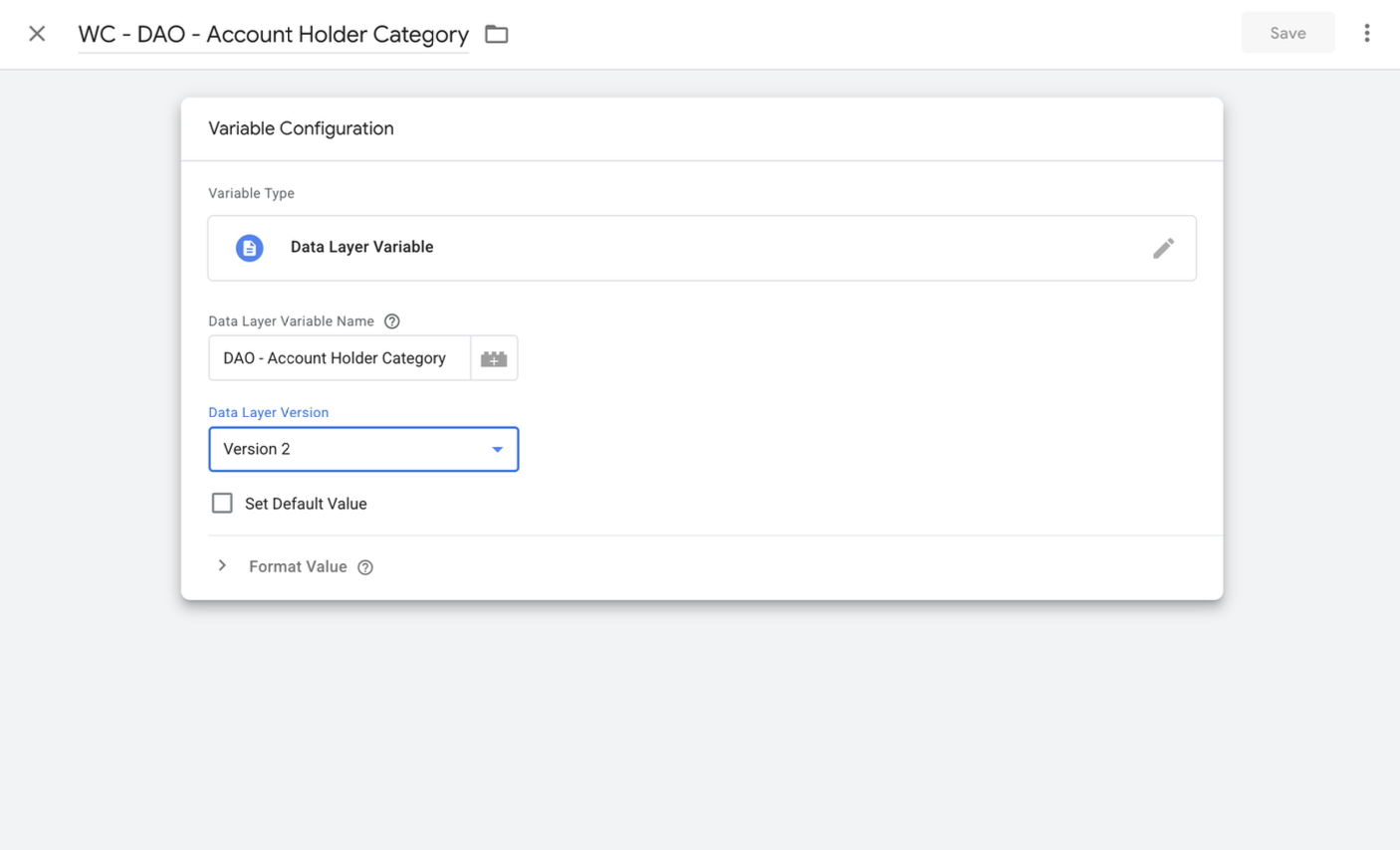
| DAO - Account Holder Category | DAO | Data Layer Variable | Refers to the type or classification of individual or entity that holds or has access to the account. These categories help define the legal rights, responsibilities, and access levels of each party involved in the account. |
| DAO - Account Name | DAO | Data Layer Variable | Refers to the designated name or label used to identify an account within the institution's system. It helps both the credit union and the member understand the purpose, ownership, or type of the account. |
| DAO - Account Type | DAO | Data Layer Variable | Refers to the category or classification of a financial product being opened. It defines the purpose, structure, regulatory treatment, and operational rules of the account. Account type is a core component of the account-opening process because it determines how the account behaves, how it is used, and how it is reported or regulated. |
How
wc_customerIdbehaves during an application:
- Before sign-in: events fired before the applicant signs in don't carry a
wc_customerId.- Signing in with a phone number: before identity verification, a temporary value is assigned each time the applicant enters their phone number. For a brand-new applicant, that value stays the same when their customer record is created. For a returning applicant, it switches once to their existing customer ID.
- Signing in with SSO or manual entry: the customer ID is set at sign-in, with no temporary value.
- After identity verification: the value is stable across abandoned, resumed, and new sessions, because a returning applicant is matched by Social Security number.
- Within a session: the value stays constant, with two exceptions. It's cleared and then re-set if the applicant goes back to Get Started, signs out, or times out. It changes if the applicant corrects a mistyped Social Security number, because the corrected number identifies a different customer.
Data layer variable configuration: sample
Triggers overview: GTM
A trigger listens for certain events — such as clicks, form submissions, or page loads — and fires any associated tags when a matching event is detected.
Triggers configuration: GTM
The table below lists the basic events and trigger logic configurations for a standard Clutch application.
| Trigger type | Product | Filter | Description |
|---|---|---|---|
| Custom Event | Lending | Event Equals 'WC - Landing Page' | This event is triggered only on the initial landing page applicants reach. For example: https://apply.mycu.com |
| Custom Event | Lending | Event Equals 'WC - Loan Portal' | This event is triggered once the applicant has provided their personal information. For example: https://apply.mycu.com/loan-portal/ |
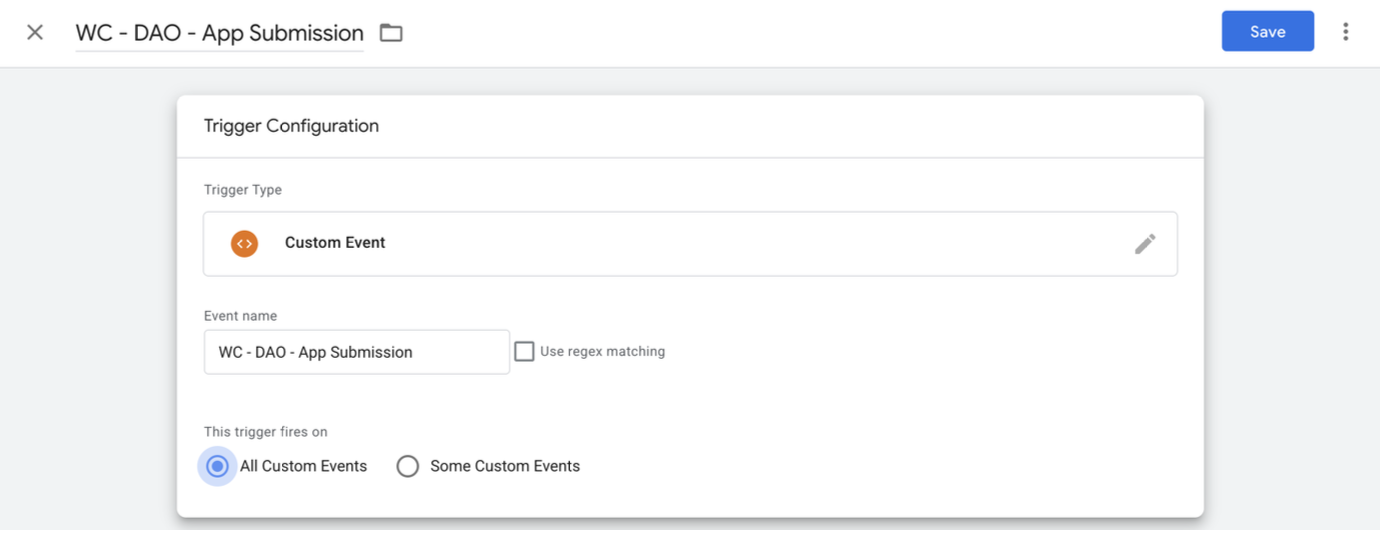
| Custom Event | Lending | Event Equals 'WC - App Submission' | This event is triggered once an applicant has submitted their application within Clutch. For example: https://apply.mycu.com/purchase/submitted |
| Custom Event | Digital Account Opening | Event Equals 'WC - DAO - Landing Page' | This event is triggered only on the initial landing page applicants reach. For example: https://apply.mycu.com/account-opening |
| Custom Event | Digital Account Opening | Event Equals 'WC - DAO - Account Holder Types' | This event is triggered only on the account holder types page. For example: https://apply.mycu.com/account-opening/account-holder-types |
| Custom Event | Digital Account Opening | Event Equals 'WC - DAO - Account Types' | This event is triggered only on the account types page. For example: https://apply.mycu.com/account-opening/account-types?category=personal |
| Custom Event | Digital Account Opening | Event Equals 'WC - DAO - Accounts' | This event is triggered only on the accounts page. For example: https://apply.mycu.com/account-opening/accounts?accountType=savings&category=personal |
| Custom Event | Digital Account Opening | Event Equals 'WC - DAO - Features' | This event is triggered only on the account features page. For example: https://apply.mycu.com/account-opening/account-features. Please note that this milestone is available ONLY for customers who are not leveraging the shopping cart feature. |
| Custom Event | Digital Account Opening | Event Equals 'WC - DAO - Funding Type' | This event is triggered only on the funding type page. For example: https://apply.mycu.com/account-opening/funding-type |
| Custom Event | Digital Account Opening | Event Equals 'WC - DAO - Review' | This event is triggered only on the account review page. For example: https://apply.mycu.com/account-opening/review |
| Custom Event | Digital Account Opening | Event Equals 'WC - DAO - App Submission' | This event is triggered only on the account submission confirmation page. For example: https://apply.mycu.com/account-opening/thank-you |
Additional filtering logic can be introduced to accomplish additional outcomes, including:
- Distinguishing sandbox from production activity
- Triggering tags for unique account types
- Triggering tags for unique account categories
- Triggering tags for unique account features
- Triggering tags for unique loan types
Trigger configuration sample: GTM
Tag overview: GTM
Clutch supports third-party analytics tags like Google Analytics and marketing tags like Facebook and Google Ads. Tags deliver data and conversion metrics to these providers and can be configured within your GTM account. Tags should be associated with variables and triggers — such as those described in this guide — to generate accurate, actionable reporting and help optimize your marketing spend.
Because there are many third-party analytics providers available, this guide focuses on configuration guidance for Google Analytics 4 (GA4) specifically, as it is the most widely used analytics solution and has a native integration with GTM. If you're implementing a different analytics solution (e.g., Adobe Analytics, Amplitude), refer to that platform's GTM integration documentation or contact their support team.
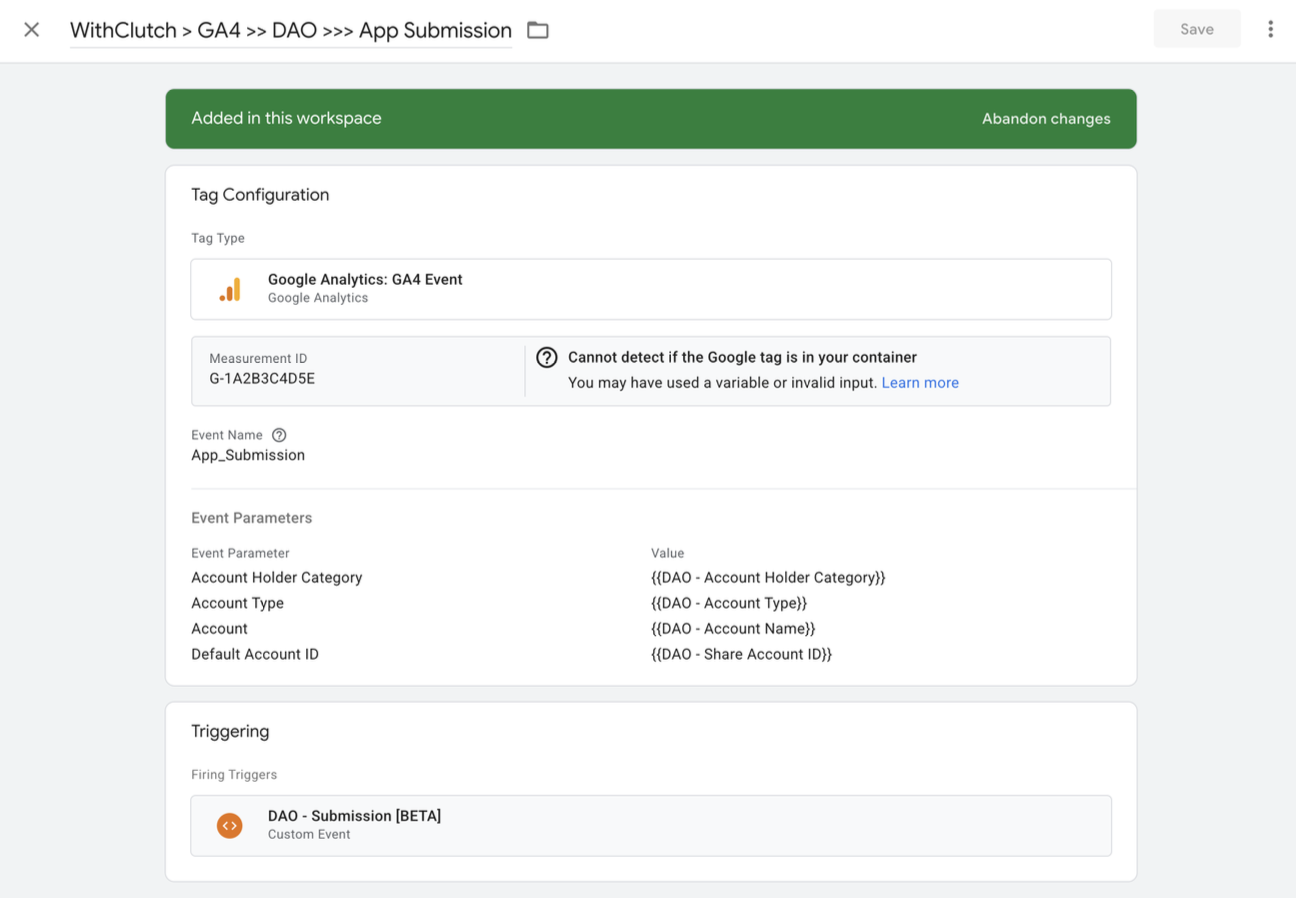
GA4 tag configuration: GTM
Use the following steps to create a GA4 tag within your GTM environment.
- Go to GTM > Tags > New.
- Name the tag. Use a descriptive naming convention for each tag you create.
- Select Tag Type: Google Analytics > Google Analytics: GA4 Event.
- In the Measurement ID field, paste your GA4 Measurement ID. This can be found in GA4 under Admin → Data Streams → Web Type → Web Stream Details → G-XXXXXXXX. You enter this value yourself inside your own GTM account — Clutch does not need it and never receives it.
- Provide an Event Name. Use a descriptive name without spaces — use underscores instead, as spaces may interfere with Google Analytics' ability to accurately capture event activity.
- Add Event Parameters. Select Add Row for each parameter and map your data layer variable. Event Parameters are recommended to account for repeat applicants and to ensure unique activity is recorded for each application.
- Set the trigger to the applicable event trigger, such as those listed earlier in this guide.
- Select Save.
GA4 tag sample: GTM
Testing, validation, and troubleshooting
Before going live, Clutch requires you to configure your GTM account and confirm that the configuration is working as expected. Follow the checklist below:
- Validate your borrower application workflow end-to-end in the sandbox environment (no special access is required).
- Report any defects to Clutch Support for remediation support.
- Once you've signed off on the sandbox validation, repeat the configuration process in production.
Clutch recommends using best-of-breed debugging tools for your specific tag manager and analytics provider.
Debugging tools
- GTM preview mode — Use GTM's built-in preview mode to test the integration and confirm all appropriate tags are firing.
- Google Tag Companion
- Tag Assistant Legacy (Google)
- Debugger — Available in Chrome developer tools.
General
- Chrome browser dev tools → Console & Network tabs
- Dataslayer
- Observepoint TagDebugger
Troubleshooting URL parameters
Issue: Marketing campaign parameters and/or UTM parameters are being stripped when applicants leave your campaign landing page to start the Clutch application.
Solution: Check your landing page to confirm the parameters are appended to the link URL pointing to Clutch. If they're not present, work with your developer(s) to ensure they persist on every page. Parameters must persist throughout the full browsing session, as the borrower may leave the landing page and visit another page on your website before selecting the "Apply" call-to-action button or link that leads to Clutch.
Troubleshooting tag loading
Tag loading is controlled by the trigger logic in your GTM tag configuration. If you're experiencing tag loading issues — such as tags not firing or tags firing multiple times — the root cause is almost always a misconfiguration in the trigger's conditional logic.
Steps to diagnose:
- Confirm the conditional logic follows the guidance provided in this guide.
- Confirm the conditional logic is not too broad or too narrow.
Solutions:
- Update the conditional logic to match Clutch's recommended configuration. Clutch has tested and validated that the recommended trigger logic works correctly — deviations from these recommendations are likely to cause issues.
- Adjust the conditional logic to be more or less restrictive as needed.
Frequently Asked Questions
What exactly does Clutch need from us to turn tag management on
Your GTM container ID (GTM-XXXXXXX), submitted through a support ticket. That is the whole ask. Clutch enables the container; your team configures the tags, triggers, and variables inside your own GTM account.
Do we need a separate GTM container for Lending and Digital Account Opening
No. The container is attached to your partner alias, not to a URL, so one container covers both products. If tag management is already enabled for one line of business, the other is already covered - there is nothing further to request from Clutch. You will still build separate tags, triggers, and variables for each product inside your own GTM account.
We only have a GA4 measurement ID and no GTM container - what do we do
You will need a GTM container before Clutch can enable tag management. Creating one is free at tagmanager.google.com. Once the container exists, submit its ID (GTM-XXXXXXX) through a support ticket and your GA4 property connects to it on your side.
Who do we contact if something is not working
Open a ticket with Clutch Support at support.withclutch.com. Include your GTM container ID, the environment you are testing in, and what you expected to see versus what fired.
What if I don't know how to configure tag management - can Clutch provide guidance
Clutch's documentation is designed to guide you through the configuration process. Because each organization's tag management setup and analytics provider is unique, Clutch is not able to provide platform-specific consultation beyond what's covered in this guide. For platform-specific questions, contact your tag management or analytics provider directly. If you have a specific question about the Clutch implementation, open a ticket with Clutch Support.
Can I add tag management or analytics tags/pixels directly to the Clutch application
No. All tags/pixels must be added to Clutch via tag management. Direct copy/pasting of tags or pixels to Clutch application pages/screens is not supported.
Is it possible to correlate submitted Clutch applications with the referring lead source
Yes. There are two ways: (1) use the referral source parameter, or (2) use your analytics provider's campaign tracking parameters. Only the first option includes the source within Clutch reporting — option 2 includes it in your analytics provider's reporting.
Can Clutch pass campaign tracking URL parameters to our core/LOS provider so we can track the full application to a funded loan journey
Yes. If your GTM container is already configured in Clutch and you use campaign tracking URL parameters (UTM, etc.), campaign information is automatically collected and delivered to your LOS (MeridienLink customers only). Clutch can also update the configuration to deliver UTM parameters to your core provider upon request.
Why is there a discrepancy in the number of apps reported in my analytics vs. the Clutch pipeline report
Data tracked via third-party reporting tools like Google Analytics should be considered directional only — it is not the system of record. There are several reasons why data won't reconcile between the two systems. An acceptable deviation between the two is 5%–10%.
Still need help
Open a ticket with Clutch Support at support.withclutch.com and the team will help you get set up.
Was this article helpful?
That’s Great!
Thank you for your feedback
Sorry! We couldn't be helpful
Thank you for your feedback
Feedback sent
We appreciate your effort and will try to fix the article